

 Singapore
 USA
USA Canada
 Australia
 UK
UK Europe
 New Zealand
 Japan
Japan UAE
UAE India
India South Korea
Dual 4K Universal Docking Station - HDMI Edition


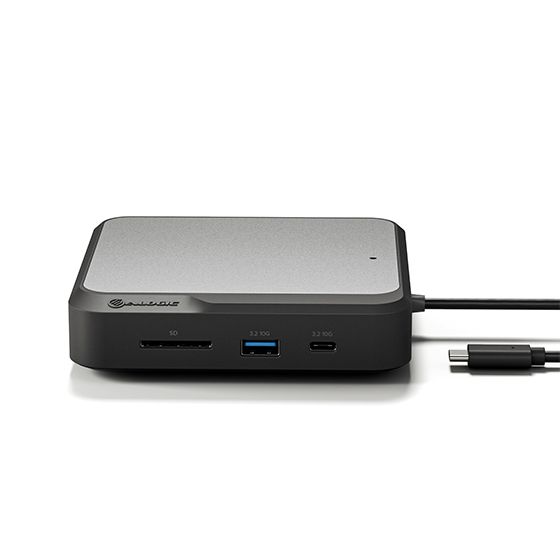
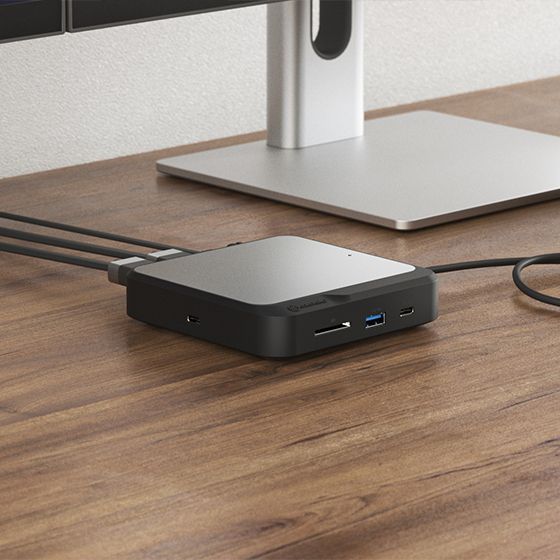
Dual 4K Universal Docking Station - HDMI Edition
Dual 4K Universal Docking Station - HDMI Edition
Couldn't load pickup availability
Specifications
Specifications

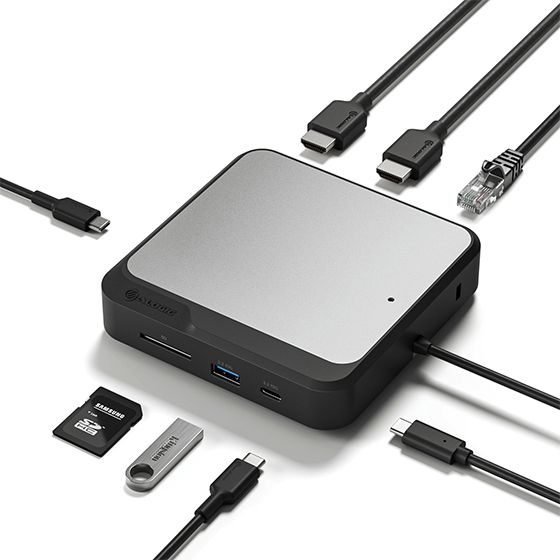
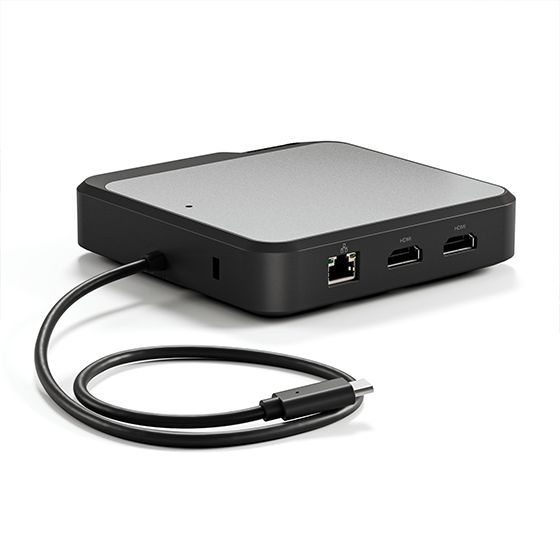
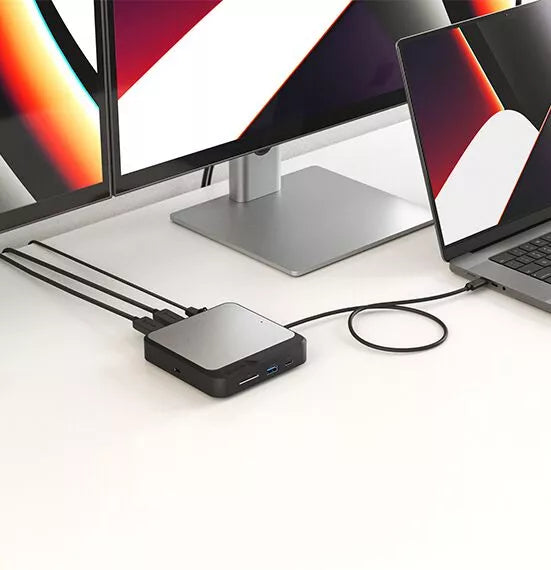
ALOGIC’s Dual 4K Universal Compact Docking Station’s twin HDMI outputs enable you to connect two external displays at resolutions up to 4K.
The dock’s inbuilt DisplayLink technology ensures you experience the highest-possible screen resolutions for your computer monitor, regardless of your computer model, or
whether you connect to USB-A or USB-C ports.
When you expand your screen real estate with the CH2,
you have better oversight of your work. This oversight can improve your efficiency and productivity.


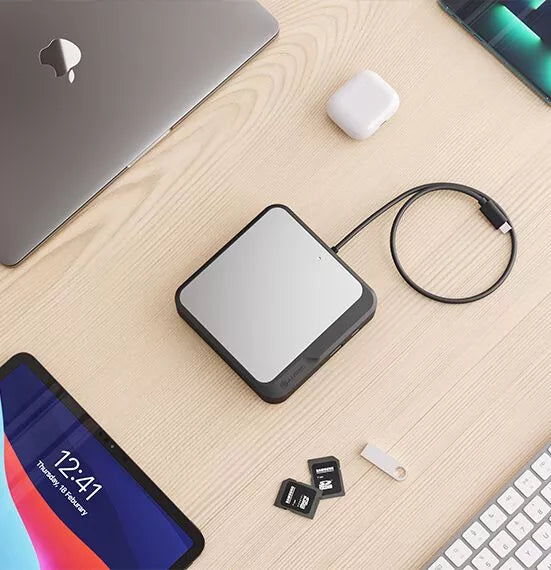
The CH2’s comprehensive suite of high-performing ports supports the versatile connectivity needs of homes, schools, and businesses.
The dock’s USB-A [3.2 Gen 2, 10Gbps] and USB-C ports [3.2 Gen 2, 10Gbps] keep essential USB accessories such as external drives, scanners, keyboards, and mice humming.
Connect your laptop to the CH2 for up to 100W pass-through charging [when the CH2 is connected to an external power adapter],
and connect to the Internet with Gigabit Ethernet when security and stability are paramount.
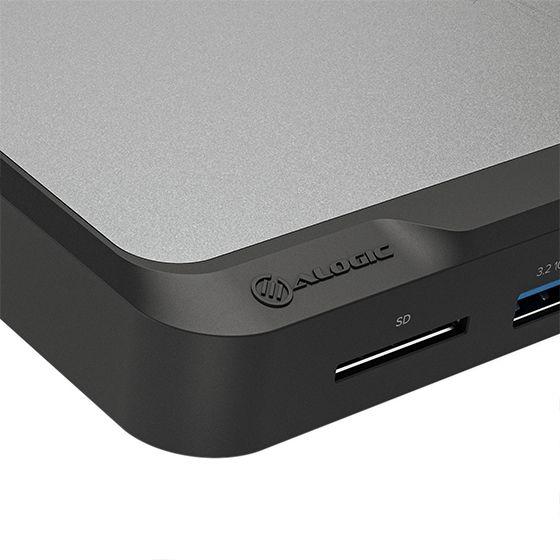
The CH2 also features an SD 4.0/UHS-II Card Reader, so you can rapidly transfer your bulky multimedia libraries to and from the dock.
The compact CH2 is built to fast-charge your laptop with up to 100W power delivery while you run multiple displays, USB accessories, and Ethernet, all over a single USB-C cable*.
All you need to do is plug your laptop in when it’s time to get to work, and unplug when it’s time to take your laptop on the road.
*When connected to a host computer with USB-C ports that support USB Power Delivery, the CH2 will connect peripherals and charge the laptop over a single USB-C cable.
USB-A enabled laptops can be charged from the dock using the ALOGIC DCAP-SPL USB-C Data + Power Splitter (available separately).
When you need your laptop for mobile work, the CH2 docks can also operate by connecting directly with your computer’s USB port [without an external power supply]. However, factor in that the docks’ USB-C ports are inactive in the absence of a power adapter connection, due to power constraints.


General
The dock's USB-C data port will also be disabled when not connected to external power.
Using the USB-C connection will provide better display options compared to the older USB-A connection.
Video: 2x HDMI outputs (Dual 4K @ 60Hz).
Data Transfer: 1x USB-C 3.2 Gen 2 (10Gbps) and 1x USB-A 3.2 Gen 2 (10Gbps).
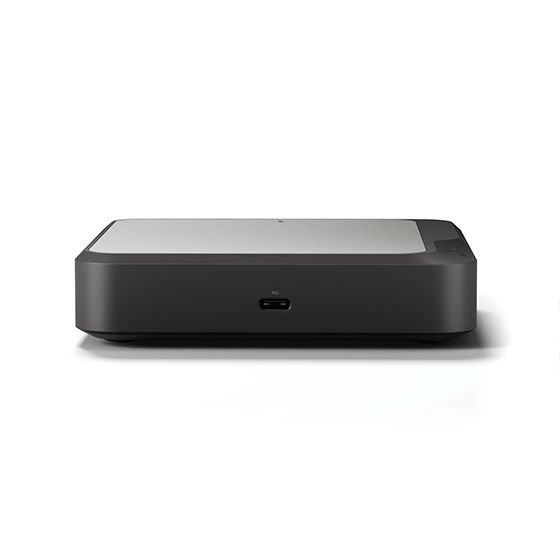
Power: 1x USB-C PD Input (Supports up to 100W power input).
Networking: 1x RJ45 Gigabit Ethernet port (1Gbps).
Storage: SD and MicroSD 4.0 UHS-II card readers."
Compatibility
The USB-C cable that comes with the CH2 also has a USB-A adapter so this dock can be used on older generation laptops.
We recommend using direct HDMI to HDMI cables from the dock to the monitor where possible.
Troubleshooting
Docking stations which use DisplayLink technology require software installed on the computer connected to them to function correctly.
Always ensure you have installed the latest DisplayLink software for your machine from the DisplayLink website at:
https://www.displaylink.com/downloads
In addition to installing the DisplayLink software, MacOS Version 11 requires permissions being granted to the software for it to work correctly. These permissions allow the operating system to send video to the docking station to display on external monitors and do not pose any form of security risk.
The following is the process to correctly install and configure the DisplayLink software.
The steps required you will find in the attached PDF here (Click Here)
